Data Import and Export
Emma provides powerful tools for importing data into Infrahub from CSV files and exporting Infrahub data back to CSV format. This enables efficient migration from existing systems and data sharing between tools.
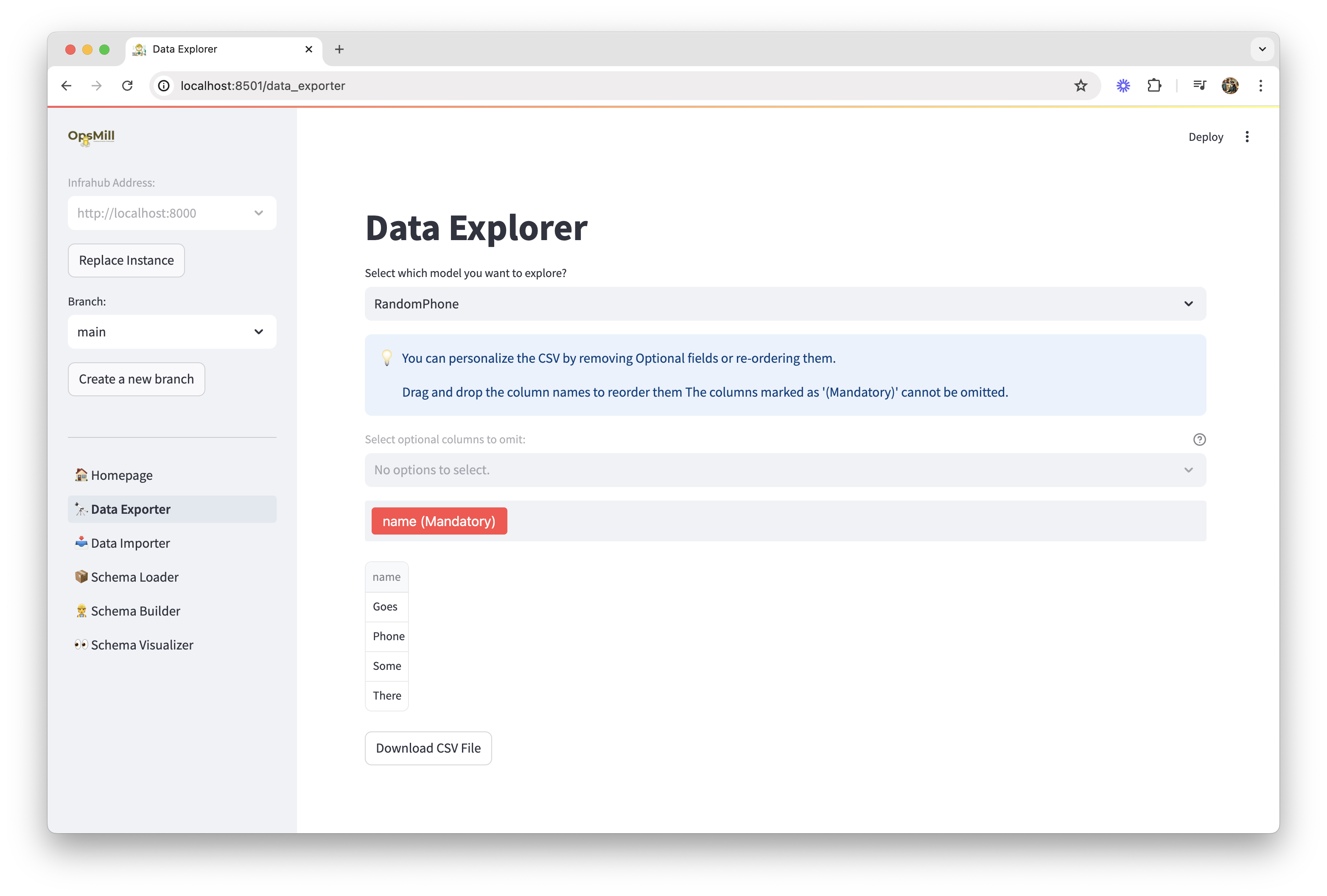
Data import
The Data Importer allows you to upload CSV files and map their columns to Infrahub schema attributes, enabling you to bulk-load infrastructure data.
Supported file formats
- CSV files with headers
- UTF-8 encoding (recommended)
- Common delimiters: comma, semicolon, tab
- File size: Up to 100MB per upload
Import process
Step 1: Prepare your data
Ensure your CSV file:
- Has column headers that match the names of the attributes and relationships in your schema. Columns are matched by name, so a header that matches nothing is reported and ignored. Surrounding whitespace in a header or a value is stripped.
- Contains clean data with consistent formatting
- Includes required fields as defined by your schema
- Uses consistent values for relationships and enums
Example CSV structure:
name,model,serial_number,location,ip_address,status
switch-01,Cisco 3850,FCW2140L0EF,datacenter-1,192.168.1.10,active
switch-02,Cisco 3850,FCW2140L0EG,datacenter-1,192.168.1.11,active
Step 2: Upload
- Choose the target kind from your Infrahub instance
- Select your CSV file using the file upload interface
Columns are matched to the schema by name; there is no manual mapping step.
Step 3: Preview and validate
Emma checks the file against the schema and shows what it found:
- Errors stop the import. A missing mandatory column, or a relationship reference that matches no object, is reported against the line it came from.
- Warnings do not stop the import. A column that matches nothing in the schema is reported and left out of the data sent to Infrahub.
If there are no errors, the resolved rows are shown in an editable table, so values can be corrected before the import runs.
Step 4: execute import
After reviewing the preview:
- Confirm the import by selecting Import Data
- Review the results, which name each object created and each row rejected by Infrahub, followed by a count of how many of the rows were imported
Advanced import features
- Relationship Handling
- Data Validation
- Performance Options
A column that matches a relationship in the schema references an object that already exists in Infrahub. Emma resolves every reference before the import runs, and reports the line number of any reference it cannot match.
Reference by human-friendly ID:
Emma looks the value up under the kind the relationship points at, so a site
relationship pointing at LabSite resolves rtp1 to the LabSite named rtp1:
site,name,height_u
rtp1,R101,42
sjc2,R201,45
If the target's human-friendly ID has several components, join them with __: a rack
identified by its site and its own name is written rtp1__R101.
A UUID is also accepted, and is used as-is with no lookup.
Reference by kind and human-friendly ID:
Prefixing the value with a kind (LabSite__rtp1) overrides the kind declared by the
relationship. This is required when the relationship points at a generic, because the
concrete kind of the target cannot be inferred:
name,endpoint
cable-01,LabInterface__switch-01__Ethernet1
Cardinality-many relationships:
Write a list, and each entry is resolved in turn:
name,tags
switch-01,"['production', 'edge']"
An empty cell, [], or "" leaves the relationship unset.
Emma validates data during import:
Schema Validation:
- Required field checking
- Data type validation
- Format validation (IP addresses, emails, etc.)
- Enum value verification
Business Rules:
- Uniqueness constraints
- Custom validation rules
- Cross-field dependencies
Error Handling:
- Detailed error reporting
- Skip invalid records option
- Partial import support
For large datasets:
Batch Processing:
- Configurable batch sizes
- Memory-efficient processing
- Progress tracking
Incremental Updates:
- Update existing records
- Insert new records only
- Upsert functionality
Parallel Processing:
- Multiple worker threads
- Optimized for large files
- Automatic resource management
Data export
The Data Exporter extracts data from Infrahub and formats it as CSV files for use in other tools or for backup purposes.
Export options
Schema-based export
Export all objects of a specific schema type:
- Select schema from your Infrahub instance
- Choose attributes to include in the export
- Configure relationship handling (include related object details)
- Set filtering criteria to limit exported records
Query-based export
Export data using custom filters:
- Field filters - Filter by specific attribute values
- Date ranges - Export data from specific time periods
- Relationship filters - Filter based on related object properties
- Complex queries - Combine multiple filter criteria
Bulk export
Export multiple schema types in a single operation:
- Related schemas - Export parent and child objects together
- Dependency order - Automatic ordering for reimport compatibility
- Consistent snapshots - Ensure data consistency across exports
Export formats
Emma supports multiple CSV format options:
Standard CSV:
- Comma-separated values
- Header row with attribute names
- UTF-8 encoding
Customizable Format:
- Custom delimiters
- Quote character options
- Line ending preferences
- Character encoding selection
Relationship Handling:
- Flatten relationships into columns
- Include relationship IDs
- Export related object details
Advanced export features
Incremental export
Export only changes since last export:
- Timestamp-based - Export records modified after a specific date
- Change tracking - Export based on Infrahub's change tracking
- Delta exports - Include only modified fields
Scheduled exports
Configure automated exports:
- Recurring schedules - Daily, weekly, monthly exports
- Event-triggered - Export on data changes
- Multiple formats - Generate different exports for different consumers
Data quality and validation
Import validation
Emma validates imported data against:
- Schema definitions - Ensure data matches expected structure
- Data types - Validate numeric, date, and other typed fields
- Constraints - Check uniqueness, required fields, and custom rules
- Relationships - Verify referenced objects exist
Export verification
Exported data includes:
- Metadata - Export timestamp, schema versions, record counts
- Integrity checks - Checksums for data verification
- Audit trail - Information about data source and transformation
Best practices
Import best practices
- Validate data quality before import using external tools
- Start with small batches to test mappings and validations
- Use consistent naming for relationship references
- Clean up data to remove duplicates and inconsistencies
- Backup Infrahub before large imports
Export best practices
- Document export purposes to choose appropriate options
- Test import compatibility if exporting for reimport
- Use incremental exports for regular synchronization
- Include metadata for audit and tracking purposes
- Validate exported data before using in downstream systems
Performance optimization
- Use appropriate batch sizes (typically 100-1000 records)
- Limit concurrent operations to avoid overwhelming Infrahub
- Monitor system resources during large operations
- Use filtering to export only necessary data
- Schedule large operations during low-usage periods
Integration scenarios
Common use cases
Migration from Legacy Systems:
- Export data from existing tools to CSV
- Transform and clean data as needed
- Import into Infrahub schemas
Data Synchronization:
- Regular exports to external systems
- Incremental updates based on changes
- Bidirectional synchronization workflows
Backup and Recovery:
- Full data exports for backup purposes
- Schema-consistent exports for disaster recovery
- Point-in-time data snapshots
Reporting and Analytics:
- Export data for business intelligence tools
- Create regular data extracts for reporting
- Integration with data lakes and warehouses
Integration with other Emma features
- Schema Library - Use library schemas as import targets
- Schema Builder - Create schemas for imported data
- Schema Visualizer - Understand data relationships before import/export
Troubleshooting
Common import issues
File Upload Problems:
- Check file size limits (100MB maximum)
- Verify file format and encoding
- Ensure proper CSV structure with headers
Mapping Errors:
- Verify schema attribute names
- Check data type compatibility
- Review required field mappings
Validation Failures:
- Check data quality and formatting
- Verify relationship references exist
- Review constraint violations
Performance Issues:
- Reduce batch sizes
- Check network connectivity
- Monitor Infrahub resource usage
Common export issues
Missing Data:
- Verify user permissions for accessed schemas
- Check filtering criteria
- Review relationship configurations
Format Problems:
- Verify encoding settings
- Check delimiter configuration
- Review quote character handling
Performance Issues:
- Use filtering to reduce data volume
- Increase timeout settings
- Monitor export progress
For detailed troubleshooting, see the Troubleshooting Guide.